User Guide
Registration and Activation
Welcome to EduTime, your platform for efficient time tracking. Register to use the specially designed solution for educational institutions that enables effective management and monitoring of working hours. Enter your email address and a password. After registration, you must confirm your email address before you can log in for the first time. First and last name are optional. Please select the canton where you work. If your canton is not yet available, use an alternative canton for now and update the details once your canton becomes available.
A 'seat' in EduTime entitles you to use it and is assigned by your organization or school. Contact your institution to gain access.
Data Migration
If you previously saved data in our old app, it can be easily transferred to the new environment. To do this, open the old app and navigate to 'Dashboard' via the yellow button at the bottom left, then select 'Statistics and Data' and 'Export Raw Data'. You can save the data directly on your smartphone if you want to perform the process on your phone, or you can email the file to yourself to continue the process on a computer. In the new web app, go to 'Settings' -> 'Import Data' -> 'Start Import'. Select the .csv file you exported. You can see which entries will be created and have the option to deselect specific entries you do not want to import using checkboxes.
Time Recording
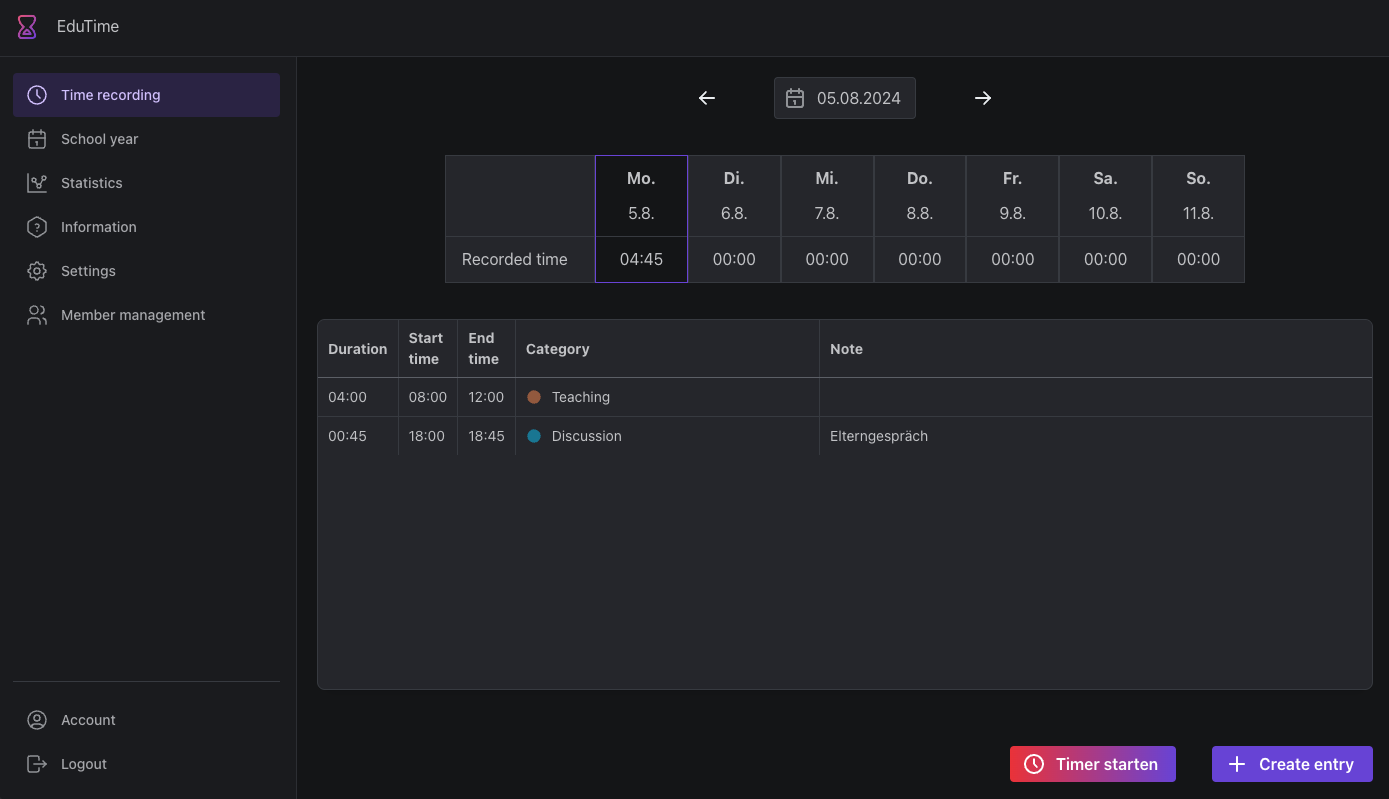
In the time recording view, you can select the day for which you want to view or edit entries at the top. Use the arrows to jump a week forward or backward. Below is a table showing the days of the week for the selected day. Click on another day to change the date and view the time recording for that day. In this table, you also see the total recorded time for each day of the week.
The lower table lists the individual entries. Click on an entry to edit or delete it. Use the bottom left button to start the timer. Click this button again to manage the timer. Here you can capture additional information about the entry and create, save temporarily, discard, or create and immediately start a new entry (arrow to the right of the 'Create' button).
Use the right 'Create Entry' button to create a new entry. Select a category and enter the start time, end time, and duration of the time element. In the comment, you can make notes about the corresponding element. The 'Repeat' function can be used to create an element multiple times. In the interval, specify on which days and until what time entries should be created. Use 'Select Days' to select or deselect additional days. Use the 'Create Entries' button to create the entries.
Additional settings captured in the settings are visible as categories and entries can be assigned to them.
School Year
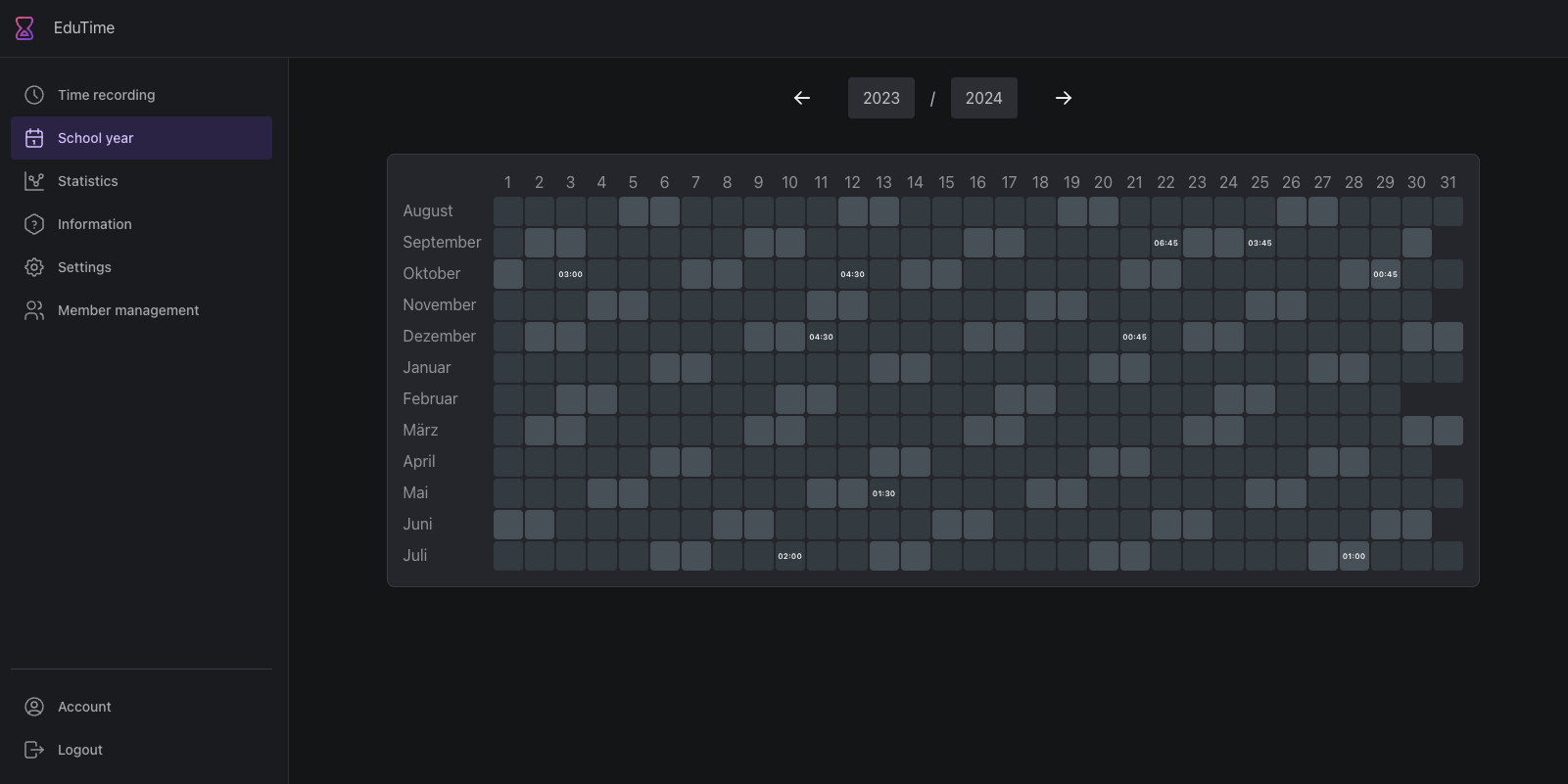
Use the arrows and year inputs to select the desired school year. The table shows each day of the school year and the recorded time. Click on a day to edit it in the time recording function. On smaller screens, the months are abbreviated to their first letters, and on very small screens, the semesters are selected separately.